วันจันทร์ที่ 14 สิงหาคม พ.ศ. 2560
แก้ปัญหาสร้างจดหมายเวียน แต่วันเดือนสลับตำแหน่ง เมื่อเชื่อมฐานข้อมูลจาก ...
***ปัญหามาจากสายงานหนึ่งต้องการให้ช่วยแก้ปัญหา
สร้างจดหมายเวียน แต่วันเดือนสลับตำแหน่ง เมื่อดึงข้อมูลจาก ms access มาใช้ใน ms word แบบแก้ขัดไปก่อน
Swap position between day and month When will do the Mail Merge in the ms word which query the data record from Database(ms access).
this is workaround, which is not the best way.
**Download the related file , such as Ms Access dbs for testing
https://drive.google.com/open?id=0BzjoxIwEMrM-OUVQaFA2d3c2cHc

วันพฤหัสบดีที่ 27 กรกฎาคม พ.ศ. 2560
mcu-pic programming(เขียนโค็ดโปรแกรม ลงชิป PIC16F627A)
MCU-PIC Programming (เขียนโค็ดโปรแกรม ลงชิป PIC16F627A)
for cc(closed caption), it coming as soon.
-เขียนโค็ด ด้วยโปรแกรม mikroC พร้อมกับแปลงเป็น hex file(ไฟล์ภาษาเครื่อง)
เมื่อได้ hex file ก็พร้อมที่จะอัพโหลดลง mcu PIC16F627A ด้วยโปรแกรม PICkit2
ในคลิปจะสร้าง โปรแกรมเพื่อทำ ไฟวิ่งที่ 1s และ 250ms ใช้ 2 LED.
-Write C-code with the mikroC program and then compile to Hex file.
When the hex file had, upload it to the mcu PIC16F627A with the PICkit2 programmer.
In this clip, create the program for the runing of 2leds at 1s and 250ms.
-Download the related file such as schematic, program, manual 16f628_627a and etc.
https://drive.google.com/open?id=0BzjoxIwEMrM-Skp0Q0tTaVlzTXM
*credit:
- http://www.smartlearningweb.com/book_PIC-usb.htm
-http://www.thaimicrotron.com/PROPIC/USB1/Main.htm //diy PICkit 2 lite
-https://shop.mikroe.com/mikroc-pic
-http://www.microchip.com/forums/m400176.aspx
-http://ww1.microchip.com/downloads/en/DeviceDoc/PICkit%202%20Readme%20v2-60-00%20(a).txt
-http://web.mit.edu/6.115/www/document/16f628.pdf


วันอาทิตย์ที่ 16 กรกฎาคม พ.ศ. 2560
ส่งภาพจากเครื่องบันทึกข้อมูล(XVR : HDCVI system) เก็บไว้ที่ Gmail (sending image from XVR to Gmail)
*การตั้งค่าและส่งภาพ(ภาพ snapshot เมื่อตรวจเจอการเคลื่อนไหว motion detect) จากเครื่องบันทึกข้อมูล(XVR) ไปเก็บไว้ที่ Email (ในที่นี้ใช้ Gmail)
*Setting and Sending images (motion detect) from the recorder device (XVR) to your Email (this case use Gmail)
*Gmail message:
XVR ALERT
Alarm Event: Motion Detect
Alarm input channel No.: 1
Alarm Start Time(D/M/Y H:M:S): 16/07/2017
Alarm Device Name: XVR
Alarm Name:
Sender IP Address: 192.168.0.30
Image attached
*คลิป ที่เกี่ยวข้อง(the related clip)
-1. ส่งภาพจากกล้อง ระบบ HDCVI ผ่านเครือข่าย 3G/4G(4G Wi-Fi DWR-932C) แสดงผลภาพและเสียงบนมือถือ.
send image from camera(HDCVI system) via 3G/4G(4G Wi-Fi DWR-932C) network and display image and sound on mobile device.
https://youtu.be/uRxvgvax04g
-2. ส่งภาพจากเครื่องบันทึกข้อมูล(XVR : HDCVI system) เก็บไว้ที่ Gmail (sending image from XVR to Gmail)
https://youtu.be/eglDL2CIr70
*Download the related file such as XVR manual
https://drive.google.com/open?id=0BzjoxIwEMrM-R01hVlNoeDdWV0k
*credit:
- https://myaccount.google.com/security //Manage your account access and security settings
- https://support.google.com/a/answer/176600?hl=en //Use SMTP settings to send mail from a printer, scanner, or app
-
http://www.inaxsys.com/media/files/element/INS44NVR_INS88NVR_user_guide_ENGLISH_STORM_Version_-_EN_2.pdf //manual xvr


วันพุธที่ 12 กรกฎาคม พ.ศ. 2560
ส่งภาพจากกล้อง ระบบ HDCVI (analog cctv) ผ่านเครือข่าย 3G/4G แสดงผลภาพและ...
-ส่งภาพจากกล้อง hdcvi(analog cctv) ผ่านเครือข่าย 3G/4G แสดงผลภาพและเสียงบนมือถือ
-send image (+ audio)from hdcvi camera(analog cctv) via 4g/3g network , to display on mobile phone.
- การเชื่อมต่อ D-LINK MOBILE 4G Wi-Fi (DWR-932C) เพื่อดูกล้อง HDCVI (analog cctv) ที่เชื่อมต่อกับ XVR Recorder 4 channel ผ่าน D-Link DIR-615 Wireless N Router (wifi connect to wifi) ทำหน้าที่เป็น wifi repeater ส่งสัญญานภาพและเสียงไปแสดงยัง App บนมือถือ ( IP Cam Viewer Lite : Android App) ผ่านเครื่อข่าย 3G/4G
-Connecting D-LINK MOBILE 4G Wi-Fi (DWR-932C) for view image of HDCVI(analog cctv) which connected with XVR Recoder 4 channel via D-Link DIR-615 Wireless N Router(wifi connect to wifi) , act as wifi repeater for send video and audio ,display to mobile app( IP Cam Viewer Lite: andriod app) via the 3G/4G network.
-แสดงขั้นตอนการเซตอัพระบบอย่างคร่าวๆ สำหรับรายละเอียดเพิ่มเติมศึกษาได้ใน เอกสารอ้างอิง ด้านล่างครับ
*Download file : manual and cofig XVR (neo cctv), network diagram
https://drive.google.com/open?id=0BzjoxIwEMrM-VjBoU1RhNHV5Q0k
*credit
- http://www.inaxsys.com/media/files/element/INS44NVR_INS88NVR_user_guide_ENGLISH_STORM_Version_-_EN_2.pdf
- http://www.dahuasecurity.com/nvr-interface-setting-network.html


วันพุธที่ 14 มิถุนายน พ.ศ. 2560
Use Arduino Nano to display audio and video on TV.(แสดงภาพและเสียงบนทีวี)
Use Arduino Nano to display audio and video on TV.(แสดงภาพและเสียงบนทีวี)
-ในคลิปจะแสดง การส่งสัญญานภาพและเสียงจาก Arduino ไปแสดงบนทีวี ซึ่งใช้แค่ arudino และ ตัวความต้านทาน 2-3 ตัว การทำงานของวงจรในคลิปคือ จะตรวจจับการเคลื่อนไหวด้วย motion sensor ถ้าหากพบการเคลื่อนไหวจะส่งสัญญานภาพและเสียงไปยังทีวีเพื่อแสดงภาพและเสียง
.
-In this clip , send both audio and video signals to show on Televistion(TV), just use only an Arudino and a few resistor .
its work for this project , will detect the motion of object if found, send both video and audio signal to display and sound on TV.
***Link for Download the related files, arduino sketch, library TV-out,image,schematic
https://drive.google.com/open?id=0BzjoxIwEMrM-azNzXy1mX2dEMDA
***Workaround solution:
- in case text flicker, use TV.delay_frame(1); //useful for minimizing or eliminating on screen flicker caused by
updating the display.
ref: https://code.google.com/archive/p/arduino-tvout/issues
- I have found that with those resistors, There is too much voltage to the TV. Should be 1 volt. I used a 2200 and 1k
ohm resistor. also a 75 ohm resistor to ground. Gives a crystal clear picture. Try this if it won't work on your TV or
DVR.
ref: https://www.youtube.com/watch?v=DT9K0ZZl_rQ
credit:
-https://www.tindie.com/products/masihvahida/vga-duino-vga-graphic-shield-for-arduino/?pt=full_prod_search
-https://www.youtube.com/watch?v=DT9K0ZZl_rQ
-https://www.kickstarter.com/projects/67935456/vgaduino-ii-new-256-color-graphic-shield-for-ardui?
ref=nav_search
-https://code.google.com/archive/p/arduino-tvout/issues


วันพุธที่ 7 มิถุนายน พ.ศ. 2560
Transmitting and Receiving Sensor Ultrasonic Transducer 40khz(Only test)
Transmitting and Receiving Sensor Ultrasonic Transducer 40khz(Only test , For those who are interested.)
- ทดสอบการใช้ เสียงในช่วงคลื่น ultrasonic 40khz ใช้ตัวส่ง a transmitter และตัวรับ a receiver โดยสังเกตจาก led จะสว่างเมื่อได้รับ ultrasonic sound 40khz และจะดับเมื่อไม่มี ultrasonic sound 40khz (จะตอบสนองต่อคลื่นเสียงที่ 40khz เท่านั้น)
-วงจรสำหรับทดสอบ ดาวน์โหลดได้ลิงค์ด้านล่าง
*** Testing , a transmitter and a recevier at 40khz if a receiver can response then the green LED will light .
On the other hand , the LED is off.
TC40-16T / R ultrasonic sensor 16mm 40khz
4 Product Performance
1 ) the nominal frequency (KHz): 40KHz
2 ) emission sound pressure at10V (0dB EQ 0.02mPa): GE 17dB
3 ) receive sensitivity at40KHz (0dB = V / ubar):GE -65dB
4 ) capacitance at1KHz, LE 1V (PF): 2000 ± 30%
5 ) detection distance (m):. 0.2 ~ 20
6) .- 6dB pointing angle : 80o
7 ) Housing material : Aluminum
8 ) Color: Silver
TC T 40 - 16 T / R 1
(TC) piezoelectric ultrasonic transducer
(T) Category : T- versatility
( 40 ) the center frequency : (KHz)
( 16 ) outer diameter : Φ (mm)
(T) usage : T- launch ; R- accepted ; TR- transceivers use either
*Eagle file and schematic and it has a arduino sketch file for test at 40khz)
https://drive.google.com/open?id=0BzjoxIwEMrM-SlBFS0N2akpBS00

 |
| transmitter part |
 |
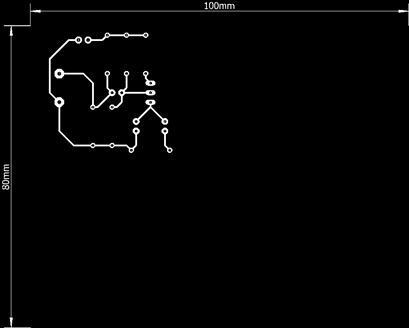
| transmitter (solder diagram, red line is top view, blue line is bottom view) |
 |
| bottom view |
 |
| recevier part |
 |
| solder view(bottom view) , recevier |
 |
| charger lipo 3.7v , via regulator 5v2a , via ams1117(output to 3.3v and 5v) |
 |
| solder view(bottom view) , charger |

วันพฤหัสบดีที่ 1 มิถุนายน พ.ศ. 2560
Circuit Wizard , let's create your own circuit symbol and pcb symbol(สร้...,
Circuit Wizard , let's create your own circuit symbol and pcb symbol , then can share and keep in your library for use it later.
Circuit Wizard , สร้าง ชิ้นส่วน หรือ parts ของ electronics component ที่เราสร้างขึ้นมาได้เอง นำมาใช้เป็น symbol ในส่วน schematic และ pcb layout (แผ่นวงจร)
How to use the custom component .
1. Download my_component and copy it's content(2 *.cwz files) to the following path.(in my case is Windows7)
C:\Program Files (x86)\New Wave Concepts 105\Circuit Wizard\Library
2. Open circuit wizard and looking for 'My Components' libray in Gallery tab.
3. Have funny.
*Downlaod this link (*.cwz, pdf ne555, manual cw)
https://drive.google.com/open?id=0BzjoxIwEMrM-UFUwak9HdXc0UUE
***component หรือ parts ที่เราได้สร้างขึ้นมา ไม่สามารถ simulate ได้ แต่สามารถนำไปทำ schematic และ แผ่นลายวงจร(แผ่นปริ้นท์)ได้
*credit
-http://www.ti.com/lit/ds/symlink/na555.pdf //NE555 PDIL5
-https://www.new-wave-concepts.com/downloads.html //download circuit wizard
สมัครสมาชิก:
บทความ (Atom)